> ## Documentation Index
> Fetch the complete documentation index at: https://macstadiuminc-add-bazel-rbe-integration-di574.mintlify.site/llms.txt
> Use this file to discover all available pages before exploring further.
# Enable SAML SSO with Google Workspace Federation
> Configure SAML SSO for MacStadium Portal via Google Workspace. Create a custom SAML app in Google Admin, download metadata, and send it to MacStadium.
SAML SSO is a paid offering. Contact your account team through the [Customer Portal](https://portal.macstadium.com) for more information.
MacStadium does not support IdP-initiated logins. After SSO is configured, all users must log in at [portal.macstadium.com/sso](https://portal.macstadium.com/sso) using the ID provided by the MacStadium team.
1. Go to [Google Admin Console](https://admin.google.com/)
2. Navigate to “Web and mobile apps” (Apps → Web and mobile apps in the left menu or use [this link](https://admin.google.com/ac/apps/unified))\\
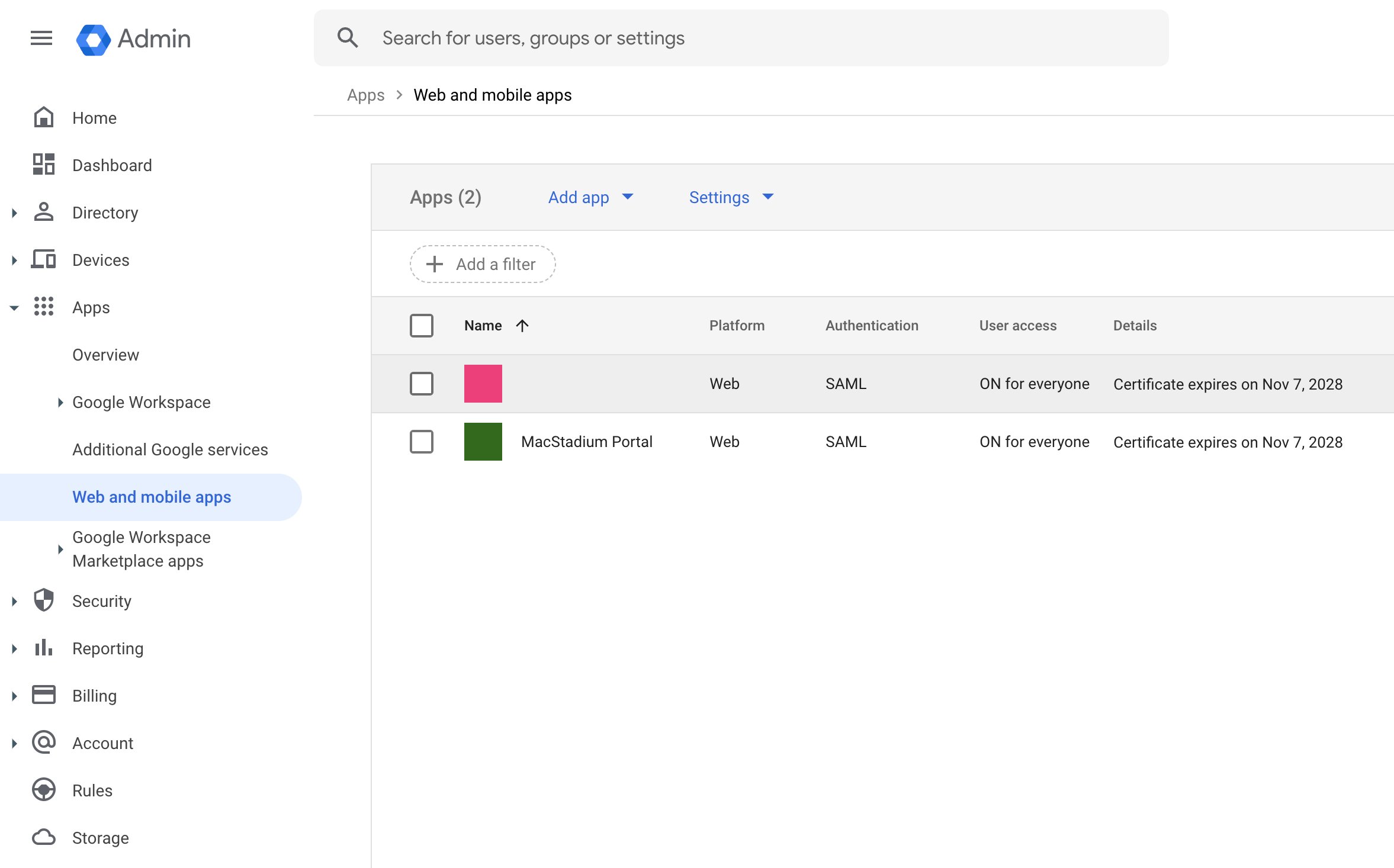 3. Create a new “Custom SAML App” (click Add app)\\
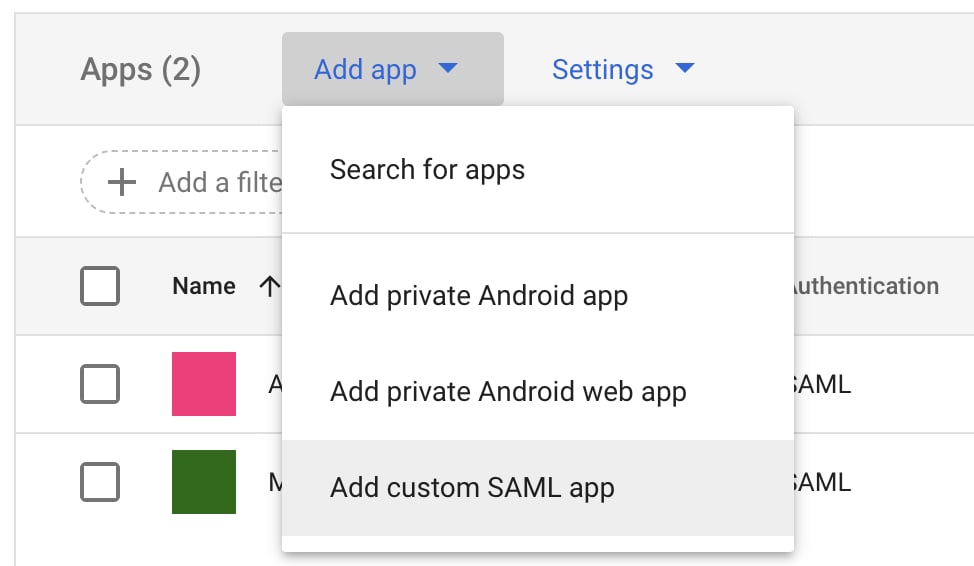 4. Enter “App name” (e.g. MacStadium Portal)
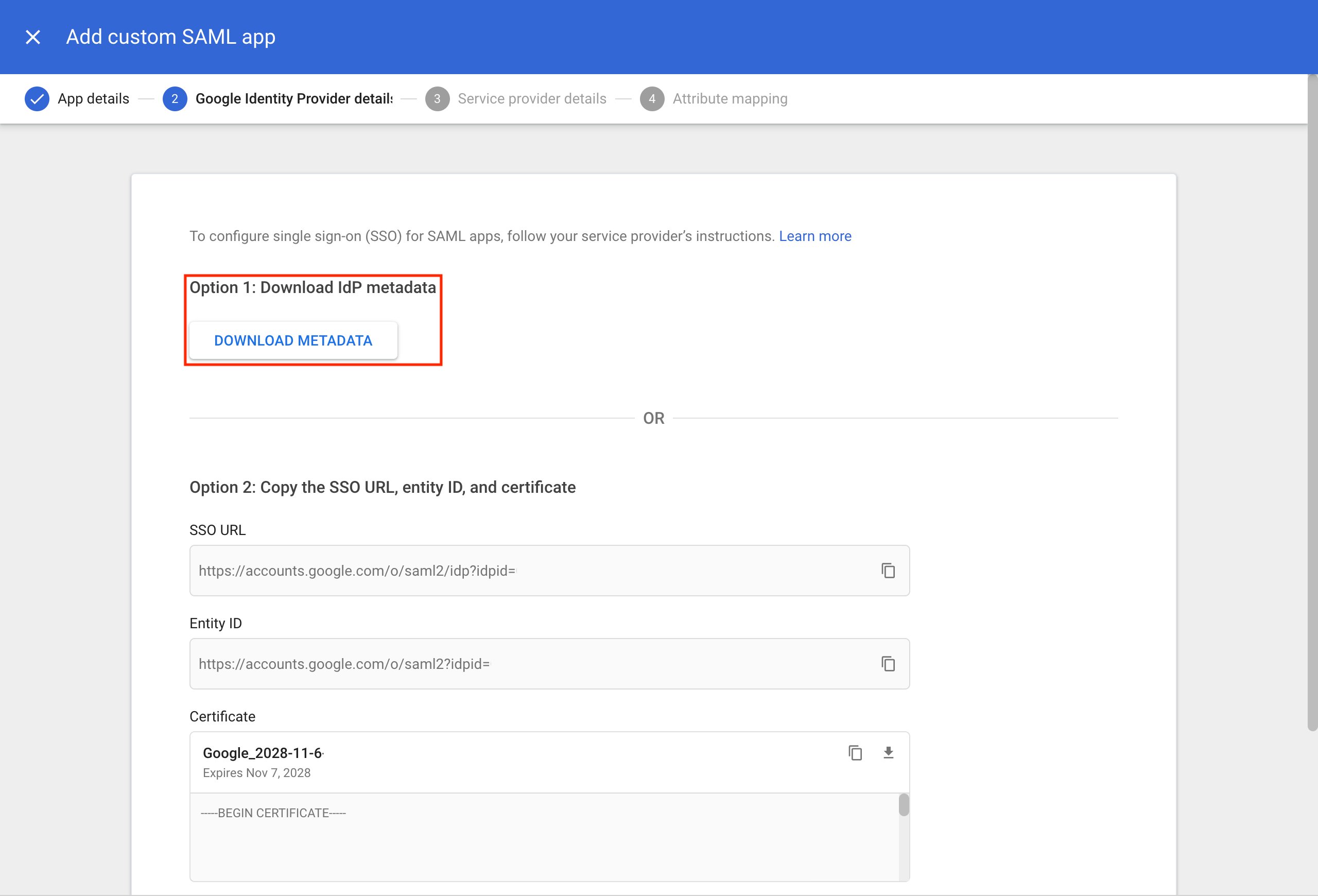
5. Download the metadata by clicking Download Metadata - Keep this file for sharing with our support team later.\\
4. Enter “App name” (e.g. MacStadium Portal)
5. Download the metadata by clicking Download Metadata - Keep this file for sharing with our support team later.\\
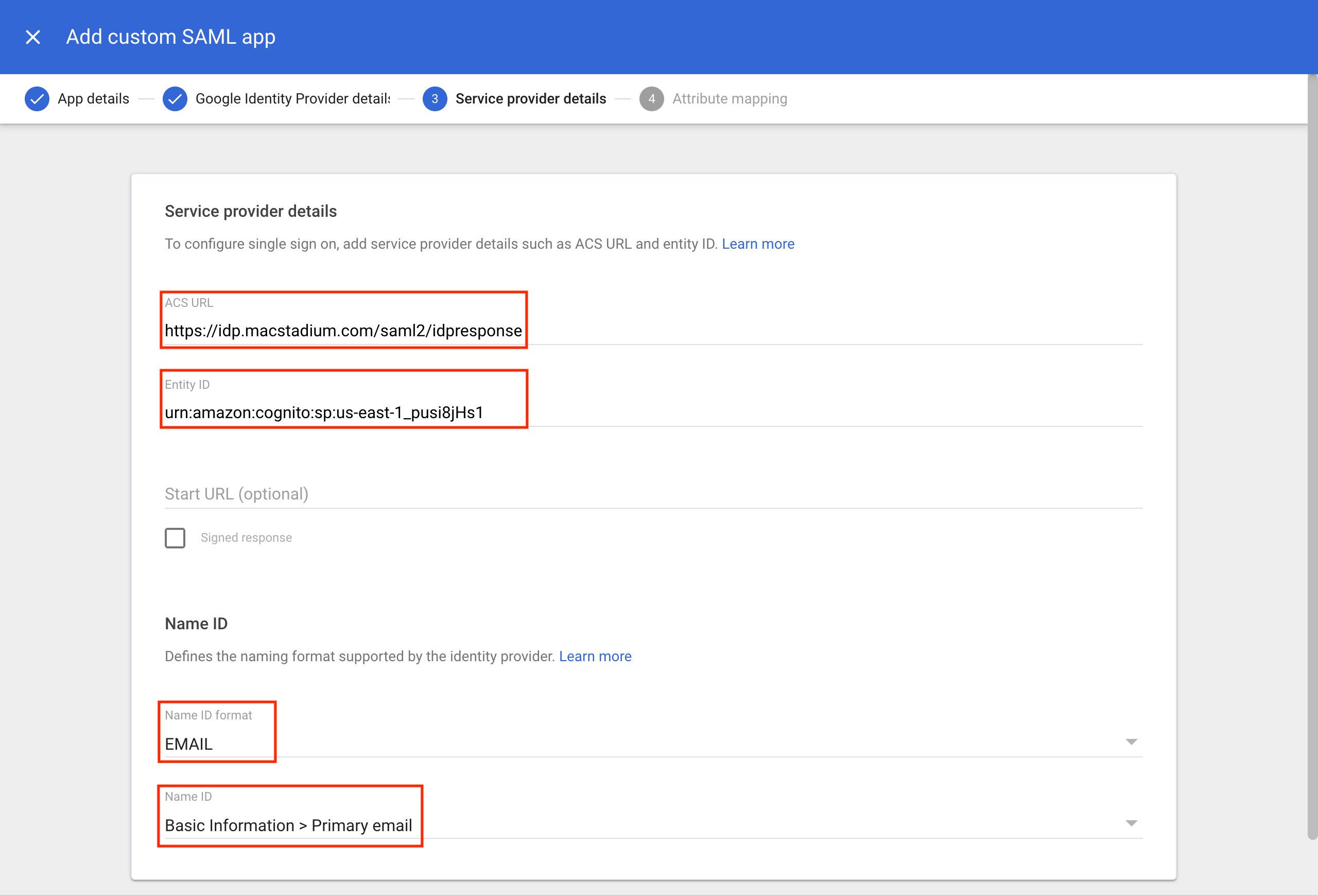
 6. Configure
* **ACS URL:** `https://idp.macstadium.com/saml2/idpresponse`
* **Entity ID:** `urn:amazon:cognito:sp:us-east-1_pusi8jHs1`
* Configure email mapping with the "Show Advanced Settings" menu
* Select EMAIL for the Name ID Format field
* Select Primary Email for the Name ID field\\
6. Configure
* **ACS URL:** `https://idp.macstadium.com/saml2/idpresponse`
* **Entity ID:** `urn:amazon:cognito:sp:us-east-1_pusi8jHs1`
* Configure email mapping with the "Show Advanced Settings" menu
* Select EMAIL for the Name ID Format field
* Select Primary Email for the Name ID field\\
 7. Map Primary email to email\\
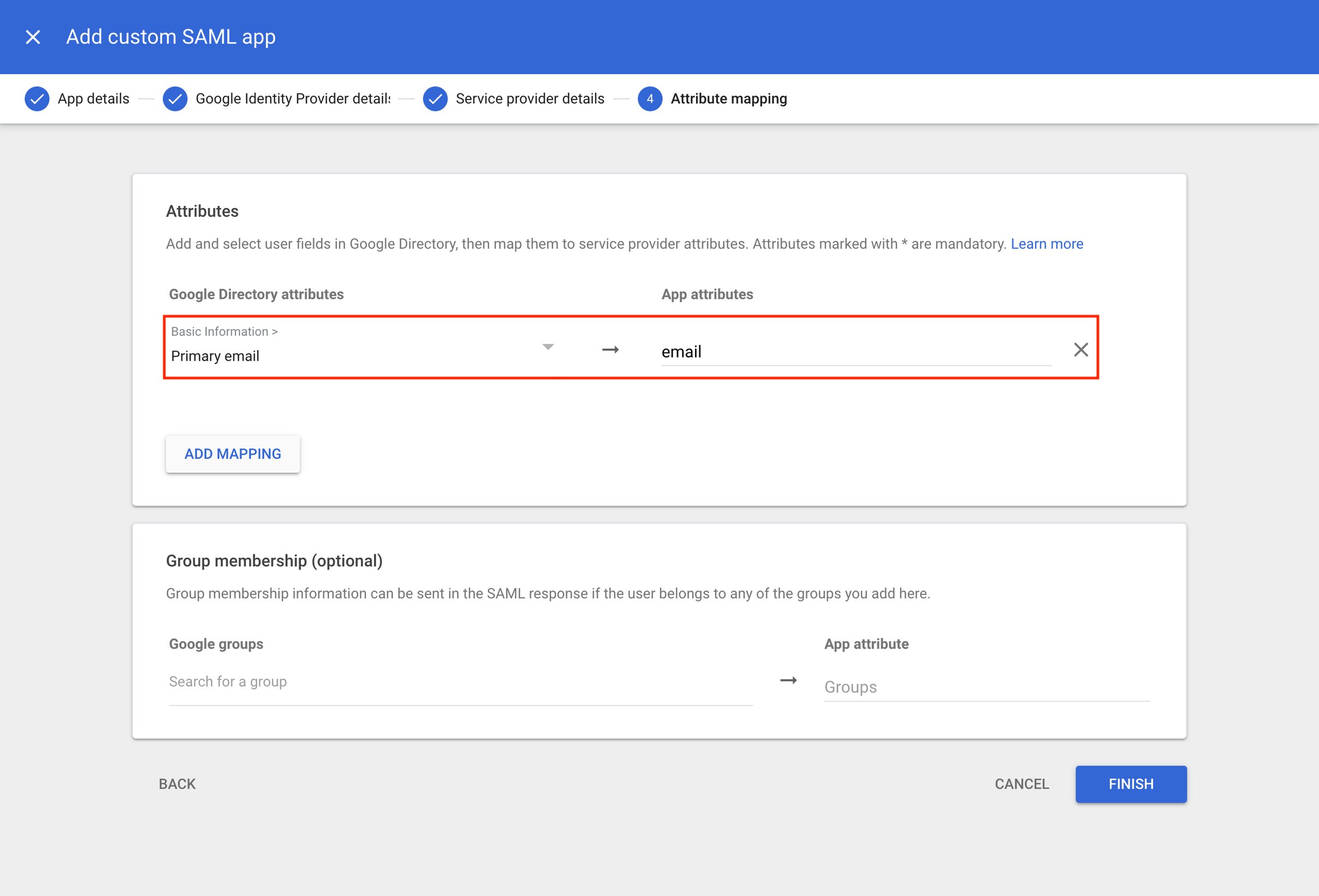 8. Click Finish to complete the setup
9. Provide our support team with the metadata file from step 5
8. Click Finish to complete the setup
9. Provide our support team with the metadata file from step 5